

Why This Is Required
Latchel Analytics uses Google authentication to provide a secure and seamless login experience. By registering your existing email with Gmail, you can:- Access Latchel Analytics without creating a new email address
- Maintain secure login and authentication
- Ensure proper access to your account and data
Steps to Register Your Email with Gmail
- Go to the Google Account Sign In page.
- Click Create account. From the drop down, select For my personal use.
- Enter your basic info.
- Click Use your existing email.
- Enter your current email address.
- Click Next.
- Verify your email address with the code sent to your existing email.
- Click Next. Follow the onscreen instructions to create a password and complete the process.
Still Having Trouble Accessing Latchel Analytics After Signing Up?
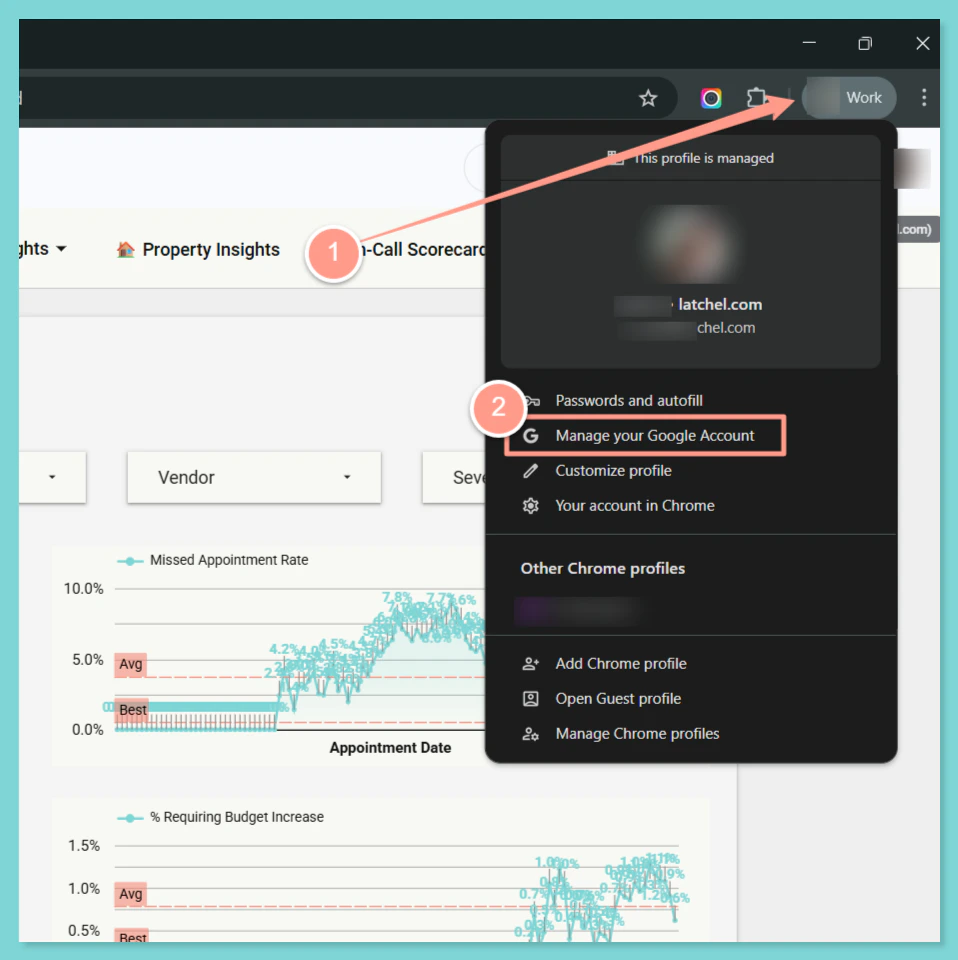
If you’re still unable to access Latchel Analytics after registering your email with Google, try the following steps:- Log out of your Google account in Chrome. Click your profile icon in the top-right corner of Chrome, then click Manage Your Google Account.
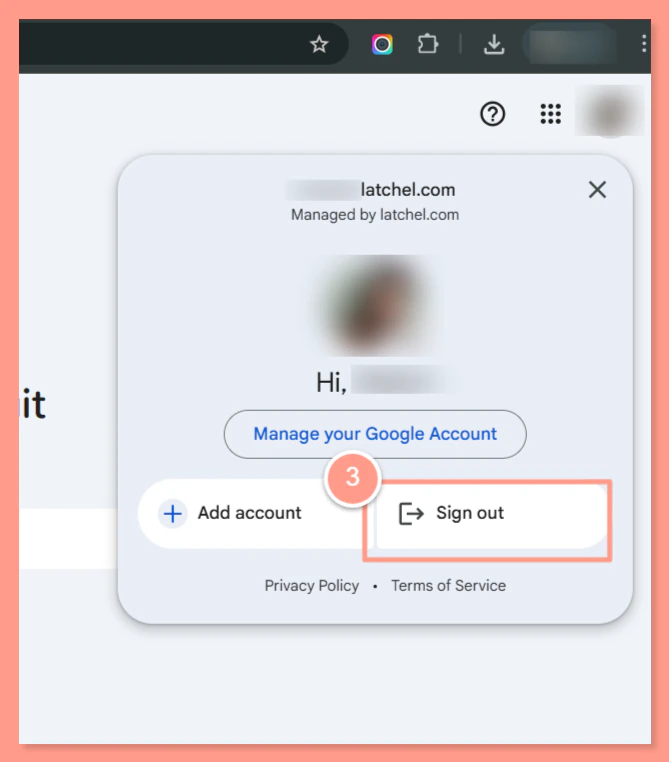
- Click your account icon again, then select Sign Out.
- Close your browser completely.
- Make sure all Chrome windows are fully closed.
- Reopen Google Chrome.
- Log back into your Google account.
- Use the same email you registered for Latchel Analytics.
- Access your Latchel Analytics URL again.
- Try opening your company-specific Analytics link.